PokéPath TD Cloud Save Guide - Sync Your Progress Across Devices
Author: POKEPATH.IO
Last Updated: January 7, 2026
This article is reprinted from pokepath.io. Original article: https://pokepath.io/strategy/cloud-save-guide
Great news! Recently, pokepath.io has noticed many players struggling with save data loss on the browser version. We've temporarily paused our Challenge Mode guide series to address this issue. POKEPATH.IO has launched a brand new Cloud Save feature for PokéPath TD 1.3.3. Now you can sync your game progress across different devices and never worry about losing your save data again!
In this guide, we'll cover the Cloud Save features and how to use it.
The Cloud Save system offers the following features:
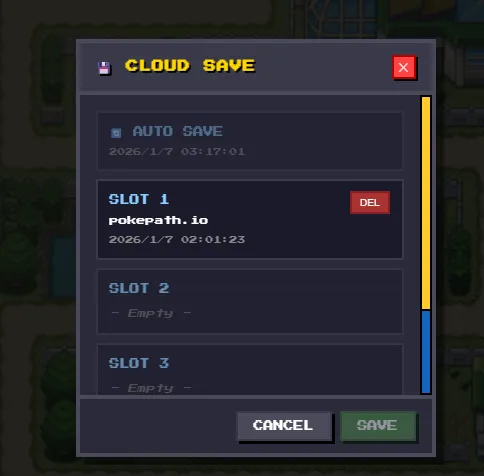
- 4 Manual Save Slots – Save up to 4 different game saves to the cloud
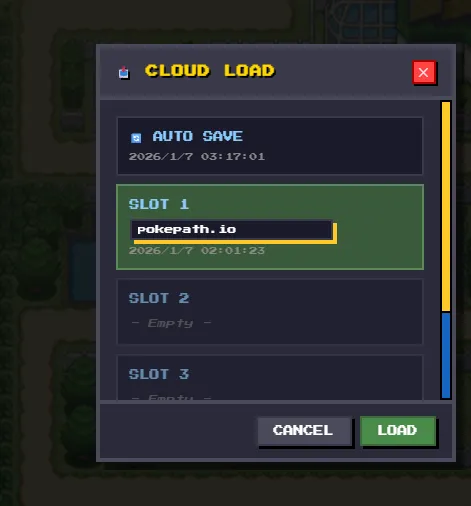
- 1 Auto Save Slot – Automatically saves your progress every 30 minutes
- Cross-Device Sync – Play on your PC, then continue on your phone
- Custom Save Names – Double-click to rename your saves for easy identification
- Secure Storage – Your saves are stored safely on our servers
Step 1: Register an Account
First, click the Log In button in the top right corner to register an account. You'll need to fill in your username and email, then set your password.
After successful registration, the Save and Load buttons will appear in the bottom sidebar of the game window.
Step 2: Save Your Progress
Step 3: Load Your Progress
Tips
- Auto Save – The game automatically saves to the cloud every 30 minutes (Slot 0)
- Rename Saves – Double-click on a save name to edit it
- Delete Saves – Click the DEL button to remove unwanted saves
The original game author hasn't updated the browser version yet. As passionate fans of PokéPath TD, POKEPATH.IO has fixed the v1.2.5 to v1.3.3 save compatibility bug where Pokémon couldn't be purchased in the shop. While there may still be some undiscovered compatibility issues, we're committed to improving the experience for all players.
FAQ
Q1: Still seeing the shop bug?
I migrated my save to v1.3.3 and had the shop bug. I'm still playing on v1.3.3 but the shop bug persists. The fix doesn't seem to work for me.
A1: This is due to browser cache. Your browser is still loading the old game files. Follow these steps to clear the cache and get the fixed version:
Q2: Where are the cloud save buttons on mobile?
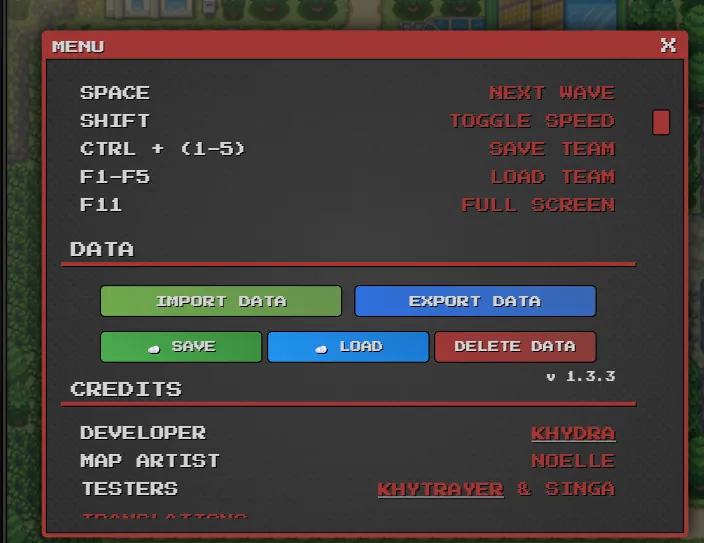
A2: Besides the Save/Load buttons below the game window, you can also find Cloud Save and Cloud Load buttons inside the game menu. Open the game menu (CREDITS button), and you'll see them right below the Import Data and Export Data buttons.
Q3: Cloud save buttons for fullscreen mode?
A3: Same as A2! Use the in-game menu buttons. Open the game menu (CREDITS button), and you'll find the Cloud Save and Cloud Load buttons below Import Data and Export Data.
Q4: Why don't I see the cloud save buttons mentioned above?
A4: This is because your browser hasn't loaded the updated game files yet. To protect players from potential save data loss, pokepath.io has not forced an automatic version update. The solution is the same as A1 - use the incognito/private browsing method to load the latest version with cloud save features.
If you've been worried about losing your save data but still love PokéPath TD, your problem is now solved!
Need More Help?
If you're not sure about the differences between version 1.3 and 1.2.5, or have questions about save data, check out our PokéPath TD 1.3 Update Guide.
Have questions or found a bug? Feel free to Contact Us!
Cloud Save is now available on POKEPATH.IO! Register today and never lose your progress again.